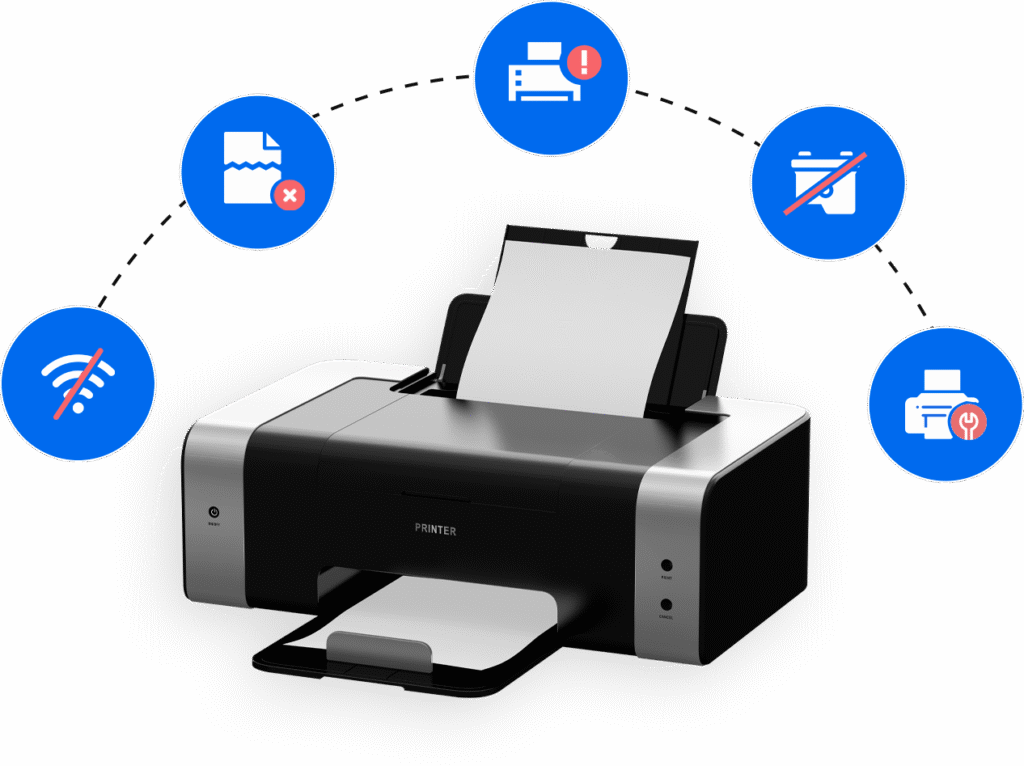
Printers are essential tools for both homes and businesses, but they can be a source of frustration when they don’t work correctly. Many common printer issues can be solved with a few simple troubleshooting steps, saving you time and the hassle of a service call. This guide covers five of the most frequent problems and provides straightforward solutions to get you back to printing.
Problem 1: The Printer Is Offline
This is one of the most common and perplexing issues. Your printer is turned on, but your computer says it’s offline and won’t send print jobs to it.
Solution:
- Check Connections: First, ensure all cables are securely plugged in. For Wi-Fi printers, make sure it’s connected to the correct network and that the signal is strong.
- Restart Devices: Turn off the printer and your computer, wait for about 30 seconds, and then turn them both back on. This simple reboot often resolves connectivity glitches.
- Check Printer Status: On Windows, go to Control Panel > Devices and Printers, right-click on your printer, and make sure Use Printer Offline is not checked. For Mac, check System Settings > Printers & Scanners to ensure your printer is active.
Problem 2: Paper Jams
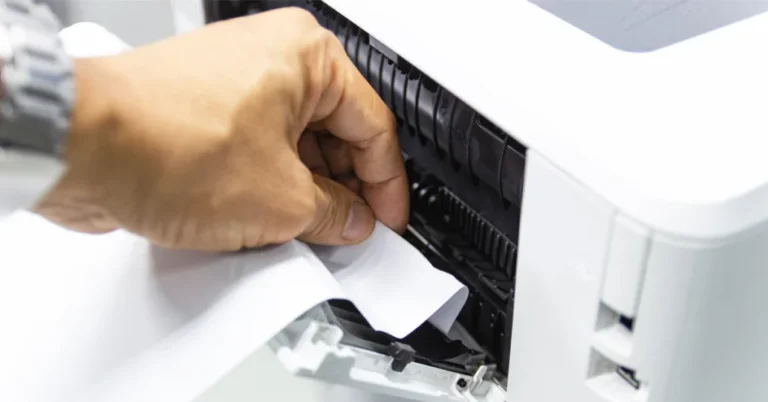
Nothing is more annoying than a crumpled sheet of paper stuck inside your printer.
Solution:
- Power Off: Turn off the printer and unplug it from the power outlet to avoid electric shocks.
- Remove Paper Carefully: Open all access panels and gently pull out the jammed paper in the direction of the paper’s path. Be careful not to tear the paper inside the printer, as small pieces can cause future jams.
- Clean and Reload: Remove all paper from the tray, fan the stack to separate the sheets, and reload it, making sure the paper guides are snug against the stack without being too tight.
Problem 3: Poor Print Quality (Faded or Streaky Prints)
If your documents are coming out with faded text, streaks, or missing colors, the issue is often related to your ink or toner cartridges.
Solution:
- Check Ink/Toner Levels: Check your printer’s control panel or software to see the ink or toner levels. If a cartridge is low, replace it.
- Clean the Printhead: Most inkjet printers have a built-in utility to clean the printheads. Run this cleaning cycle, as it can clear clogged nozzles. For laser printers, low toner can often be improved by gently shaking the cartridge from side to side to redistribute the powder.
- Use Quality Supplies: Using genuine or high-quality compatible ink/toner cartridges and the correct type of paper for your printer can significantly improve print quality.
Problem 4: Slow Printing
When your printer takes an unusually long time to complete a print job, it can be due to a few different factors.
Solution:
- Check Print Settings: Make sure your print settings are not set to a high-quality or photo mode, which can slow down the process. For standard documents, draft or normal quality is usually sufficient.
- Reduce Graphics: Documents with high-resolution images or complex graphics take longer to process. Try reducing the image size or resolution before printing.
- Check Your Printer’s Memory: For some older or basic printers, a large print job can overwhelm the device’s internal memory. Try printing the document in smaller sections.
Problem 5: Printer Won’t Print at All
This can be the most frustrating problem. Your printer is on, online, and has paper and ink, but nothing happens.
Solution:
- Clear the Print Queue: Sometimes a corrupted print job can get stuck in the queue, preventing others from printing. On your computer, open the print queue and cancel all pending documents.
- Update Drivers: Outdated or corrupted printer drivers can cause all sorts of problems. Visit your printer manufacturer’s website to download and install the latest drivers for your specific model.
- Restart the Print Spooler: On Windows, you can restart the print spooler service to clear any errors. To do this, search for services.msc, find Print Spooler, and click Restart.
Conclusion
While printers can sometimes be temperamental, a little knowledge can go a long way in resolving common issues. By following these simple tips, you can often troubleshoot and fix problems yourself, keeping your printer running smoothly and efficiently. If you’re still having trouble, your printer might have a more complex issue that requires professional attention. Always refer to your printer’s official manual or help resources for brand-specific guidance.
Note: Still Stuck? It might depend on the specific printer model you're using.